


QuickBars for Home Assistant
4.715.00 Reviews
App Specs
- Version
- 1.3.3
- Updated On
- License
- Free
- Downloads
- 10,000+
- Developer
- Trooped
- Categories
- House & Home
- Platform
- Android
Screenshots
 Analysis by AppCompare
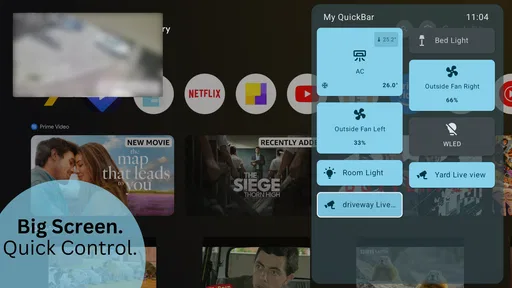
When I decide whether a smart-home app deserves a place in my routine, I start with a simple question: does it make a common task easier, or just give me another screen to manage? QuickBars for Home Assistant is aimed at a specific answer. It puts selected Home Assistant controls on a TV, so the appeal is less about replacing a full smart-home dashboard and more about reaching a useful action from the room where I need it.
That distinction matters. If you already use Home Assistant and want a television to serve as a convenient control point, QuickBars for Home Assistant is an interesting, focused option. If you want a general home-automation hub, device setup tool, or comprehensive monitoring interface, I would look elsewhere first. The best fit depends on whether the TV is genuinely part of your daily routine, rather than simply another screen in the house.
Decide by the room, not by the feature list
I would begin by listing the actions I regularly take while watching TV or moving through the living room. Turning off nearby lights, changing a scene, or adjusting a household setting are the kinds of tasks that can benefit from a quick overlay. By contrast, a control that I use once a month probably does not earn a permanent place in a TV-based setup.
It is also worth asking who will use the controls. A television can be a more approachable shared point than asking everyone to open a phone app and navigate to the right screen. That only helps when the choices are clear, though. A short bar of familiar actions is easier to use casually than an overloaded collection of controls whose labels and consequences take time to understand.
QuickBars is a free House & Home app from Trooped, with an Everyone age rating. It has a 4.7 average from around 126 ratings and over 10,000 installs. Those figures suggest it has found an audience among people interested in this particular Home Assistant use, but they are not a substitute for checking whether your own setup suits the app’s TV-first approach. It was released on August 13, 2025, and version 1.3.2 is the current version; Android 9 is the minimum requirement.
Getting Started with QuickBars
So, what's the deal with QuickBars for Home Assistant? Imagine having all your essential controls right at your fingertips, without having to dig through endless menus. That’s the magic of QuickBars. As soon as I installed it, I was impressed by how intuitive it is. The setup was a breeze, and it seamlessly integrated with my existing Home Assistant setup. Trust me, even if you're not a tech wizard, you'll find it user-friendly.
The Interface: Simple Yet Powerful
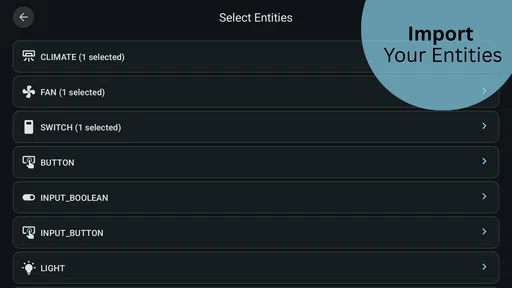
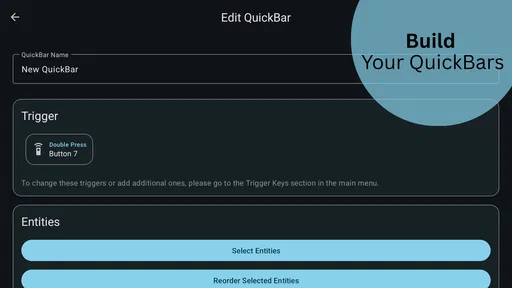
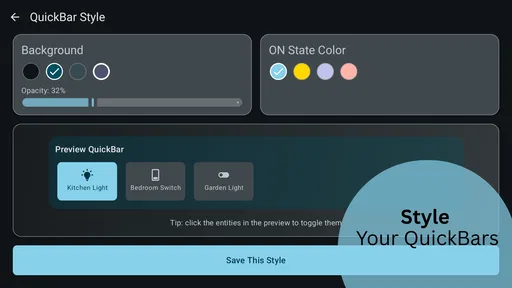
The first thing that stood out to me was the clean and minimalistic design. QuickBars offers a sleek interface that doesn't overwhelm you with options but gives you just what you need. You can create custom bars for different devices and organize them based on your preferences. Whether you want to control your lights, thermostat, or security cameras, it's all there in a tidy layout.
Worth Reading Before You Choose

Flipboard Shows What News Apps Must Do Beyond the Feed

Switching to Android Auto Means Rethinking Your Driving Routine

Google Calendar Makes a Crowded Week Easier to Manage

Ludo King Makes the Most of the Minutes Between Plans

Baby Panda World Brings Quick Play to Modern Phones, but Its Game Library Feels Busy

ESPN’s Live Game View Makes Following Close Games Easier
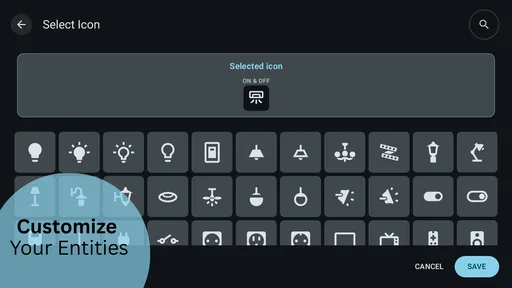
I particularly loved how customizable the bars are. You can adjust their size, color, and even the icons. This means you can tailor the app to fit your aesthetic and functional needs. Plus, the drag-and-drop feature is incredibly convenient for rearranging your controls on the fly.
Features That Stand Out
What really makes QuickBars shine are its features. Here are a few that caught my attention:
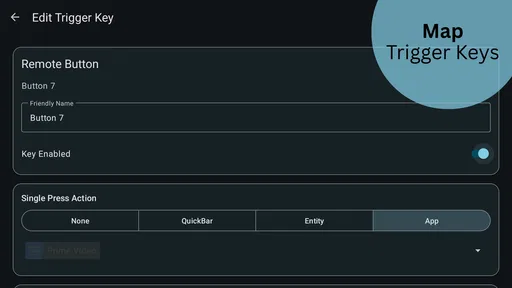
- Custom Actions: You can set up specific actions for each button. For instance, you can configure a button to turn off all the lights or start a specific scene.
- Widgets: Add widgets to your home screen for quick access to your most-used controls. It's perfect for those times when you need to adjust something quickly.
- Cross-Platform Compatibility: Whether you're an Android or iOS user, QuickBars has got you covered. It works smoothly across different devices.
For a TV setup, I would keep the first bar deliberately small and practical. Put the actions you use from the sofa together, then separate less common controls into another bar rather than making every option compete for attention. That is a useful trade-off: more customization can make the interface feel personal, but too many buttons can undo the convenience that brought you to a quick-access tool in the first place.
I would also give each action a name and icon that make sense to someone other than the person who configured it. A button labelled with a clear room or purpose is easier for a guest or family member to choose confidently than a shorthand label only its creator understands. Before relying on an action, test it while you are present and confirm that it does what you expect. This is especially sensible for controls that affect more than one device.
Where the TV overlay earns its place
The strongest use case is a shared room where the TV is already on and people want a few household controls without reaching for a phone. Picture settling in for a film and realizing the living-room lights are still bright. A well-organized bar can put the relevant action within reach, avoiding the sequence of unlocking a phone, finding the Home Assistant app, and navigating to the right control. The value is small in any single moment, but it can make a repeated routine feel smoother.
There is a second, less obvious benefit: the television can become a convenient fallback for someone who does not want to learn the whole Home Assistant interface. I would not treat that as a replacement for thoughtful setup, since the controls still need to be chosen and organized. But a limited set of familiar actions can be easier to hand over than a full dashboard with many rooms, entities, and settings.
It can also help keep specialized controls out of a general-purpose dashboard. If you have a few actions that make sense specifically in the living room, a dedicated bar can give them a home without requiring you to reorganize every screen you already use. I would treat this as a focused layer on top of Home Assistant, not a reason to rebuild the rest of the system.
How it compares with other ways to control a smart home
The usual alternative is to use Home Assistant on a phone or tablet. That approach is better when I need a broad view, want to inspect several devices, or am already carrying my phone. QuickBars makes more sense when the television is the convenient destination and the task is brief. These are complementary approaches rather than direct substitutes: one can offer a fuller control surface, while the other is useful for selected actions in a particular place.
A dedicated smart-home dashboard may be preferable if the main goal is to see lots of information at once or manage a more involved routine. A voice assistant may be faster for someone who prefers speaking and has a dependable voice-control habit. A physical switch remains the simpler choice for a light that everyone needs to operate without thinking. I would not replace a familiar, dependable control just to make the TV responsible for everything.
That comparison is also a reminder to consider the household, not just the person setting things up. Some people enjoy a customizable on-screen control; others want a straightforward switch or voice command. QuickBars is most compelling when a TV overlay fills a gap that those existing methods leave open. If nobody naturally uses the television to manage the home, installing another control surface is unlikely to change that.
Setup choices and everyday trade-offs
Before building a collection of bars, decide which tasks are worth making visible on the TV and which should remain in your usual Home Assistant interface. This avoids copying every available control into a new place. I would start with a small set tied to one routine, use it for a while, and only then add more. That makes it easier to notice whether a control is genuinely useful or merely looks convenient during setup.
Think carefully about actions with broad effects. A button that turns off all the lights may be handy at bedtime, but it could be the wrong choice if someone is still using another room. For a shared space, a room-specific action can be more considerate than a household-wide one. The useful question is not only “Can I trigger this quickly?” but also “Will this action still make sense when another person presses it?”
Quick access also changes the cost of a mistaken tap: the shorter the path, the less time there is to reconsider. Clear labels and a restrained layout matter for that reason, not just for appearance. I would reserve prominent positions for safe, predictable actions and keep anything with a bigger consequence easy to distinguish. That small bit of planning is more valuable than making every bar visually elaborate.
Some practical questions come down to the devices and habits already in your home. QuickBars is intended for Home Assistant control on a TV, so I would first make sure Home Assistant is already part of the setup and that the TV is a screen you actually use for this kind of interaction. The Android minimum is version 9; the listing also describes compatibility with Android and iOS, but the experience you care about here is the TV control flow. If your plan depends on a particular television, remote, or operating-system combination, check that exact arrangement before building your routine around it.
Another sensible question is whether it replaces Home Assistant. I would not approach it that way. The value is in quick access to selected controls, while the wider Home Assistant setup remains the place to manage the broader smart home. Nor would I assume that every device or action will be equally convenient on a TV: the best candidates are simple controls whose result is easy to understand from the sofa.
Performance and Reliability
Now, let's talk about performance. Nobody wants an app that lags or crashes, right? I’ve been using QuickBars for a couple of weeks now, and I'm pleased to report that it's been rock solid. The response time is almost instant, making it a reliable companion for managing my smart home devices.
The app also doesn’t seem to hog your device's resources, which is a huge plus. You can keep it running in the background without worrying about it draining your battery or slowing down your phone.
Even with a smooth experience, I would keep an ordinary fallback for important household tasks. A TV is a shared device and may not be available whenever someone wants to adjust a light or another setting. Keeping the phone app, a switch, or another familiar method in the mix prevents a convenient overlay from becoming a single point of dependence. That is less a criticism of QuickBars than a practical rule for home automation: fast access is useful, but essential controls should not rely on one screen alone.
Who should choose it—and who should not
I would recommend QuickBars to people who already use Home Assistant, watch TV in a room where smart-home controls are useful, and can name a short list of actions they repeat. It is especially appealing if you want a shared, glanceable way to trigger selected tasks without making every household member navigate a full control interface. Its free price also makes it easier to consider as a focused addition rather than a major commitment.
I would skip it if you do not use Home Assistant, rarely interact with your TV as a control surface, or mainly need detailed device management. It is also not the right answer for someone who wants a physical control that works independently of an app or a voice-first routine that avoids screens altogether. In those cases, a Home Assistant dashboard, a familiar switch, or a voice assistant may fit the actual habit better.
Switching does not have to mean abandoning anything. I would leave existing controls in place, choose a few low-risk actions for the TV, and see whether anyone in the household reaches for them naturally. If they do, expand gradually; if they do not, the test will have shown that the television is not the right place for those tasks. Keeping the first setup modest also makes it easier to revise labels and organization without turning the change into a household-wide project.
Why You Should Give It a Try
If you're someone who loves having control and efficiency at your fingertips, then QuickBars is definitely worth a shot. It simplifies the way you interact with your smart home, bringing everything into one easy-to-access place. Plus, the ability to customize and organize the controls to suit your needs is a major win in my book.
So, if you're ready to take your home automation game to the next level, I'd highly recommend giving QuickBars a try. You might just find it to be the perfect addition to your smart home toolkit.
And there you have it, folks! A quick dive into the world of QuickBars for Home Assistant. Happy automating!
Pros
- Easy integration with Home Assistant.
- Customizable interface for quick access.
- Supports multiple dashboard setups.
- Responsive and smooth performance.
- Regular updates and improvements.
Cons
- Limited widget customization options.
- Requires Home Assistant to function.
- Some features need premium access.
- Initial setup can be complex for newbies.
- No offline mode available.
FAQs for QuickBars for Home Assistant
What is QuickBars for Home Assistant?
QuickBars for Home Assistant is a versatile app designed to enhance your smart home experience by providing quick access to your most-used devices and automations. It integrates seamlessly with Home Assistant, allowing you to control your home environment efficiently and effectively from your smartphone.
Is QuickBars for Home Assistant compatible with both Android and iOS?
Yes, QuickBars for Home Assistant is available on both Android and iOS platforms. The app is designed to provide a consistent experience across devices, ensuring you can manage your smart home effortlessly whether you're using an Android phone or an iPhone.
How does QuickBars improve my Home Assistant experience?
QuickBars enhances your Home Assistant experience by offering a simplified interface that allows for quick toggling of devices and access to automations. With customizable bars, you can prioritize your most-used settings and control them with just a tap, improving convenience and efficiency.
Can I customize the interface in QuickBars?
Absolutely! QuickBars provides extensive customization options. You can arrange your buttons, create specific bars for different rooms or setups, and tailor the interface to suit your preferences. This flexibility ensures that you have a personalized and intuitive control system for your smart home.
Is QuickBars secure to use with my Home Assistant setup?
Security is a top priority for QuickBars. The app uses secure connections to integrate with your Home Assistant setup, ensuring that your data and controls remain protected. Always ensure you are using the latest version for the best security features and updates.


